Best practices & limitations
Flowwtools converts most modern HTML, CSS and JavaScript cleanly, but a few input patterns give the best results and a few output limitations are worth knowing up front. This page covers both.
What converts and what doesn't
| In your code | In Webflow after pasting |
|---|---|
| HTML structure and class-based CSS | Native Webflow elements with classes you can edit in the Style panel |
| JavaScript, including animations | Kept in a Script Embed that runs when you preview or publish |
| Native interactions (IX2 or IX3) | Not generated; recreate them in the Interactions panel by hand |
| CMS Collection Lists | A placeholder structure you replace with a real Collection List |
| Custom fonts | The family name is kept and the fallback stack is dropped; upload the font under Site settings → Fonts |
| Images and other media | Shown once the files exist in the project's Assets |
| Browser features with no Webflow equivalent | Preserved as custom code instead of dropped |
| Framework or component-library markup | Often not translated directly; standard HTML, CSS and JavaScript convert best |
Best practices
Paste into a new project first. Before importing converted content into an existing project, paste it into a fresh Webflow project to verify everything converted correctly in a clean environment, then copy the section into your working project once you're satisfied.
Use the AI prompt. The built-in prompt is written specifically for this converter. Using it before generating code helps AI tools produce HTML and CSS that converts more reliably.
Generate complete sections. The converter performs best on a complete section at a time (a hero, a feature grid, a pricing table) rather than isolated fragments. Building a page one section at a time also makes it easier to edit and maintain once it's inside Webflow.
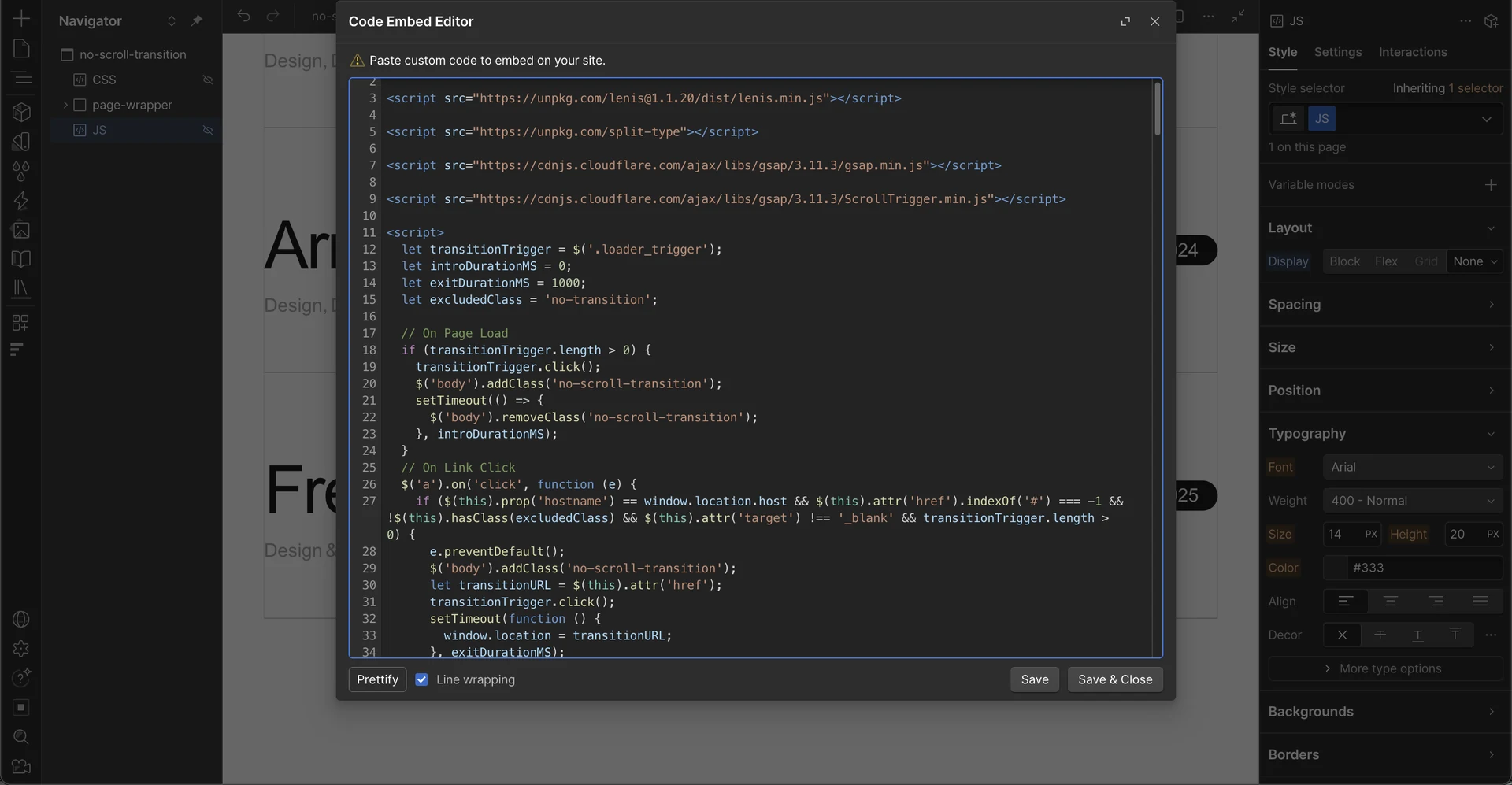
Preview JavaScript-powered sections properly. JavaScript animations
don't run while you're editing inside Designer, so turn on Preview with
Render custom code, or publish to your .webflow.io
staging domain, to see the real experience.
Pair the converter with a design system. The converter rebuilds structure; a design system is what keeps typography, spacing, color and components consistent. Giving your AI tool both produces layouts that look consistent and convert more reliably.
Refine before reconverting. If a conversion isn't quite right, adjusting the prompt or regenerating the source code is usually faster than fixing the result by hand after it's already in Webflow.
Current limitations
Native Webflow interactions aren't generated. The converter writes no IX2 or IX3 data, so no timelines, triggers, or animation steps appear in the Interactions panel after pasting. JavaScript animations are folded into a script embed instead. They run correctly once previewed or published, but they aren't editable through the Interactions panel and recreating one natively is a manual step. Support for native-interaction output is planned, but isn't available today.
CMS Collection Lists are recreated as placeholder structures rather than native Collection List elements. After pasting into Webflow, reconnect the layout by replacing the generated wrapper with a real Collection List (see How converter works for the full steps).
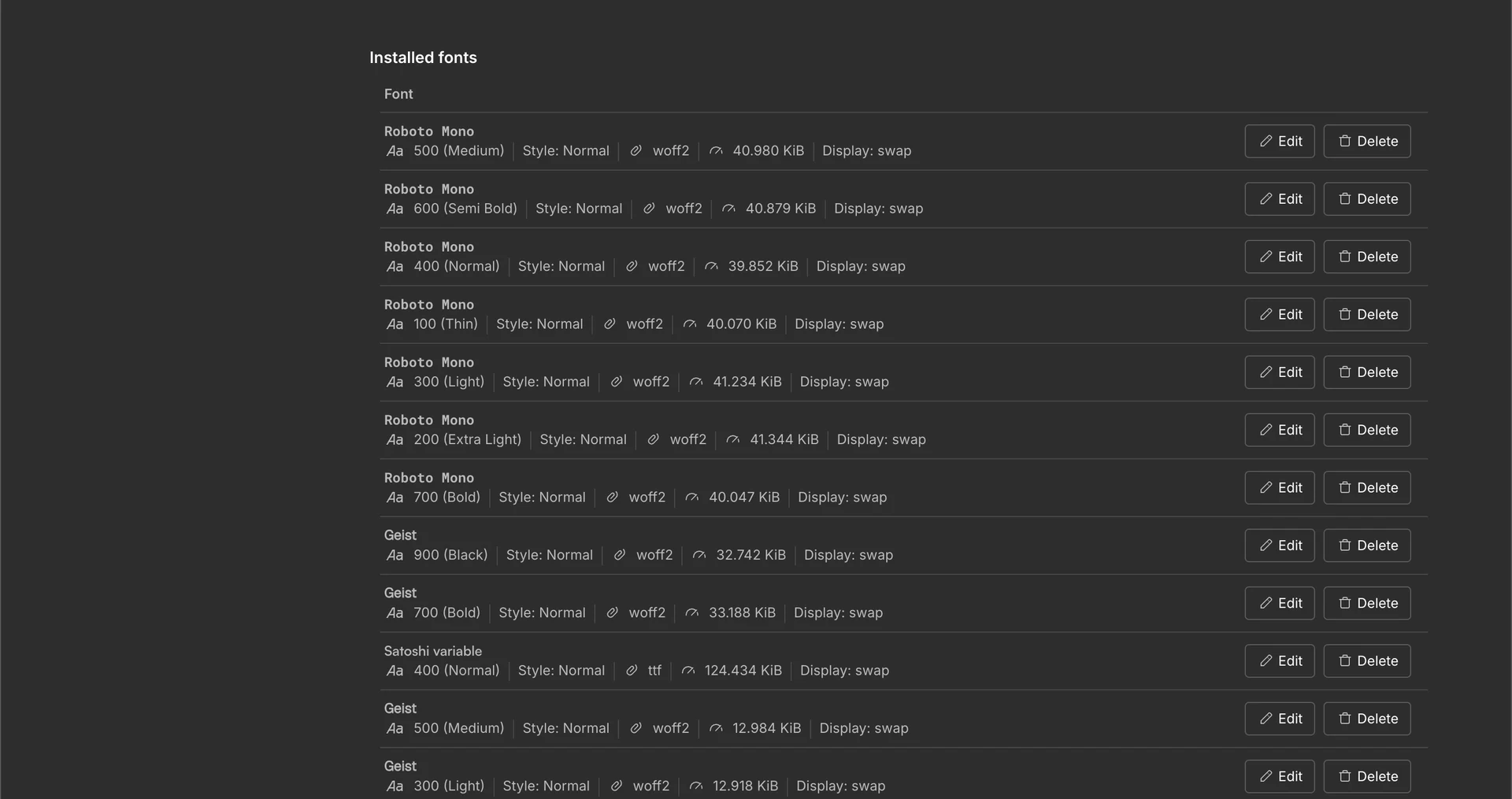
Custom fonts aren't carried across as files. The converter keeps the family name
from your font-family declaration, but font files live in your Webflow
project rather than in the pasted content, so a face the project doesn't have yet
renders in Webflow's default until you add it. Note the fallback stack is dropped.
Webflow stores a single family name, so "Satoshi", sans-serif becomes
Satoshi. Upload the font under Site settings → Fonts
using the same family name your CSS references and the pasted styles pick it up.
Frameworks and component libraries often generate markup Webflow can't translate directly. Standard HTML, CSS and JavaScript generally produce the most editable results.
When importing into an existing project, avoid class names that already exist there. Duplicate class names can cause Webflow to create new class variants, which makes class organization harder to maintain and can affect how styles and variable references apply.
Some browser features simply don't have a native Webflow equivalent. When that happens, the converter preserves the original behavior as custom code instead of dropping it. See How conversion works for what that looks like.
Browser support
The convert mechanism is supported on Chrome, Edge and Firefox. It is not supported on Safari, because Safari can't place the format Webflow Designer reads onto the clipboard, so the copied result won't paste. Please use a supported browser to convert and copy.