Convert HTML into Webflow
Nothing to install. Add your code, convert it and paste the result into your project.
Webflow Designer has no built-in way to import HTML, so pasted markup normally has to be rebuilt by hand. The converter closes that gap: it runs online in your browser (nothing to install, no extension, just a free account) and turns your code into the format Designer reads when you paste.
You'll need a Webflow project open in Designer, plus HTML, CSS and JavaScript from an
AI tool, a code editor, or another website. If your HTML already includes inline CSS
or JavaScript, just paste the whole file into the index.html editor and
the converter automatically detects embedded styles and scripts and moves them into
the right tab for you.
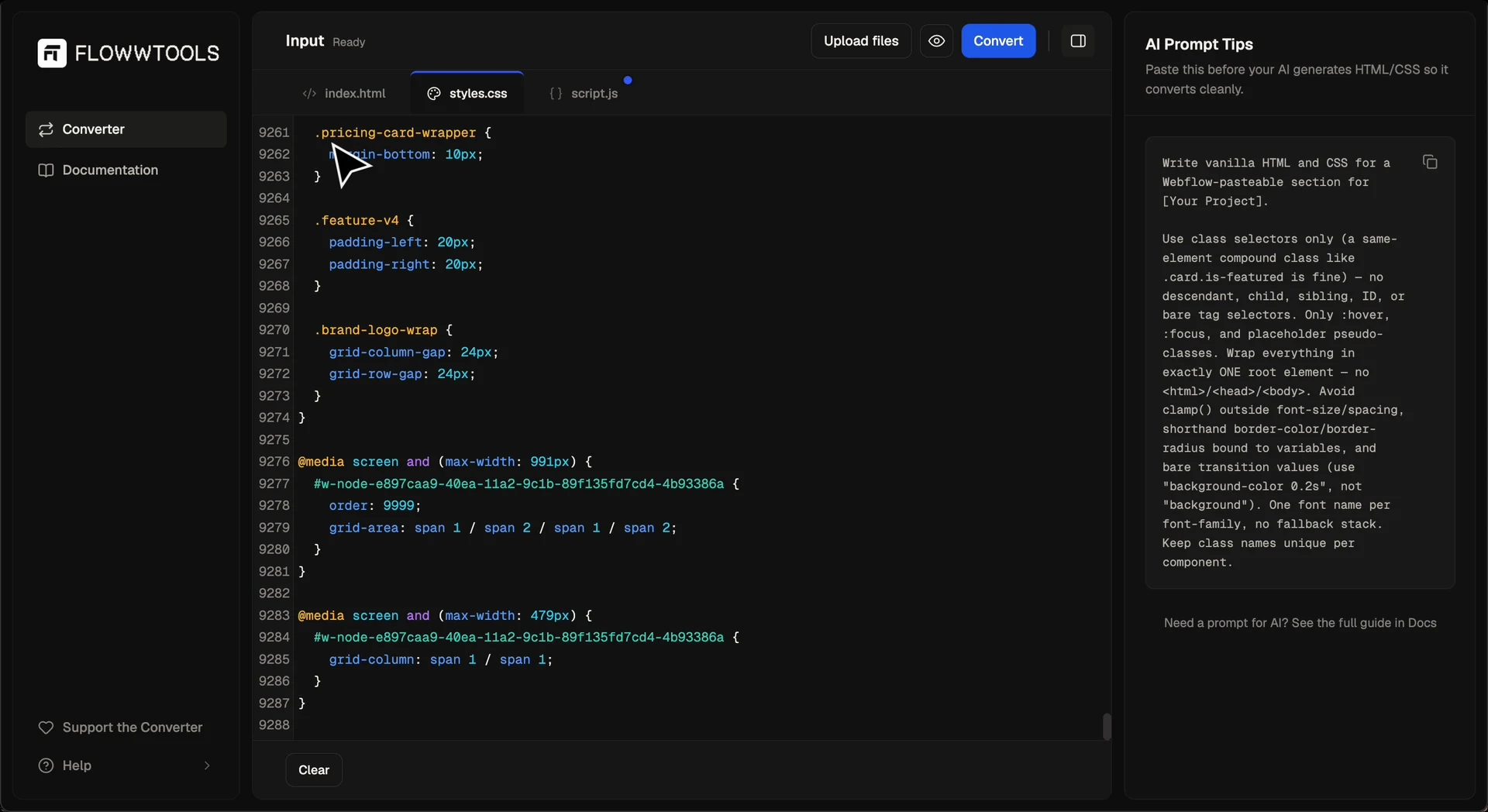
Add your code
Paste your code straight into the matching editor (index.html,
styles.css and script.js), or select
Upload files to import one file or all three at once. The built-in
editor is fully editable, so you can make changes before converting if you need to.
Use the Preview button in the toolbar to see how your HTML, CSS and JavaScript render before converting, across Desktop, Tablet and Mobile widths, which makes layout issues easy to catch early. When you're happy with the result, convert directly from the preview or head back to the editor first.
Convert and paste

Select Convert from the toolbar. The converter rebuilds your code as
native Webflow elements and copies the result straight to your clipboard. Open your
Webflow project, select the wrapper, section, or element where you want the content
to land in the Navigator panel and paste with Cmd/Ctrl + V. What lands
is a native Webflow structure you can edit, style, reorganize and extend just like
anything built directly in Designer.
What lands is editable Webflow content, not a screenshot and not one dead embed of the
whole page. Your CSS becomes real Webflow classes in the Style panel rather than raw
stylesheet text, so you can restyle any element after pasting. Class-based selectors
convert most reliably and :hover styles carry across as Webflow hover
states.
What happens to your JavaScript
JavaScript isn't rebuilt as elements because Webflow has no native equivalent for arbitrary scripts. Instead the converter preserves it as a Webflow code embed, so animation code such as GSAP survives the paste intact. Nothing is written to Webflow's native interactions (IX2 or IX3), so the Interactions panel stays empty after pasting. Your animation runs from the embed instead. Embedded scripts don't execute inside Designer, which is how Webflow treats all custom code; they run on your published site. See How converter works for what that looks like in the output.